InputFormCheckBox, InputFormCheckBoxList and InputFormCheckBoxListValidator
The InputFormCheckBox control can be used to place a single check box on a SharePoint web part or application page. If you want to offer to the user a set of different options, you can use the InputFormCheckBoxList. The InputFormCheckBoxValidator is destined to validate an InputFormCheckBox or InputCheckBoxList.
All three controls are located in the Microsoft.SharePoint.WebControls namespace of the Microsoft.SharePoint.dll.

The InputFormCheckBox control
You can declare an InputFormCheckBox control on an application page using the following syntax:
<spuc:InputFormCheckBox ID="SampleInputFormCheckBox" runat="server" LabelText="Single Option" ButtonSpacing="20" />
Don’t forget to add the page directive:
<%@ Register TagPrefix="spuc" Namespace="Microsoft.SharePoint.WebControls"
             Assembly="Microsoft.SharePoint, Version=12.0.0.0, Culture=neutral, PublicKeyToken=71e9bce111e9429c" %>
In code this would look as follows:
InputFormCheckBox checkbox = new InputFormCheckBox();
checkbox.ID = "inputFormCheckBox1";
checkbox.Text = "Single Option";
checkbox.AutoPostBack = true;
checkbox.CheckedChanged += new EventHandler(checkbox_CheckedChanged);
The InputFormCheckBoxList inherits from the ASP.NET CheckBoxList, located in the System.Web.UI.WebControls namespace of the System.Web.dll and has no additional properties, methods or events. There are a number of properties/attributes that you can set on the InputFormCheckBox:
- AutoPostBack: set this property to true if you want the page to post back when this option is checked or unchecked. In that case you have to implement the CheckedChanged event.
- ButtonSpacing: specify the number of pixels you want to be added between the check box and the following control.
- Checked: set this property to true if you want the check box to appear selected.
- Text: you can set the text property to appear next to the check box, but in that case you also have to set the width property. If you want a label to appear next to the check box, you can better use the LabelText property.
- LabelText: specify the text that you want to appear next to the check box.
- ToggleChildren: if the check box has child controls, they will also be selected when the check box is selected or unselected when the check box is unselected.
- InputAttributes: this property comes from the normal ASP.NET attribute. It is the collection of attributes for the check box itself.
- LabelAttributes: also this property is inherited from the normal ASP.NET attribute. It is the collection of attributes that belongs to the label element of the check box.
As with a normal ASP.NET CheckBox, you can add an event handler to the CheckedChanged event to handle the user choice.
The InputFormCheckBoxList control
If you want to use an InputFormCheckBoxList control on an application page, declare it as follows:
<spuc:InputFormCheckBoxList ID="SampleInputFormCheckBoxList" runat="server" class="ms-authoringcontrols">
      <asp:ListItem Text="Option 1" Value="1" />
      <asp:ListItem Text="Option 2" Value="2" />
      <asp:ListItem Text="Option 3" Selected="True" Value="3" />
      <asp:ListItem Text="Option 4" Value="4" />
</spuc:InputFormCheckBoxList>
Use the same page directive as for the InputFormCheckBox control.
The InputFormCheckBoxList inherits from the ASP.NET CheckBoxList, located in the System.Web.UI.WebControls namespace of the System.Web.dll and has no additional properties, methods or events. Don’t forget to set the class attribute on the InputFormCheckBoxList element or the ListItem elements will be rendered differently.
The InputFormCheckBoxList control using a data source
You can bind an InputFormCheckBoxList to a SharePoint data source. This type of data source can retrieve data from a list or site. A SharePoint data source can be defined as follows:
<spuc:SPDataSource runat="server" ID="SkillsDataSource"
      DataSourceMode="List"
      SelectCommand="<Query><OrderBy><FieldRef Name='Title' Ascending='true' /></OrderBy></Query>" >
      <SelectParameters>
         <asp:Parameter Name="ListName" DefaultValue="Skills" />
      </SelectParameters>
</spuc:SPDataSource>
The data source in this sample retrieves al list items from the Skills list.
Set the DataSourceID property from the InputFormCheckBoxList control to the SPDataSource control. The DataTextField property indicates the field that will be displayed as the options. The DataValueField property indicates the field that will be used as the value for the option.
<spuc:InputFormCheckBoxList ID="SkillsInputFormCheckBoxList" runat="server" class="ms-authoringcontrols"
      DataSourceID="SkillsDataSource" DataTextField="Title" DataValueField="ID" />

The InputFormCheckBoxValidator control
This validator control can only be used against an InputFormCheckBoxList control (and not an InputFormCheckBox control). It works as a required field validator: if no options are selected when clicking the OK button, the specified error message will appear:
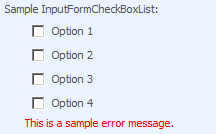
<spuc:InputFormCheckBoxList ID="SampleInputFormCheckBoxList" runat="server" class="ms-authoringcontrols">
      <asp:ListItem Text="Option 1" Value="1" />
      <asp:ListItem Text="Option 2" Value="2" />
      <asp:ListItem Text="Option 3" Selected="True" Value="3" />
      <asp:ListItem Text="Option 4" Value="4" />
</spuc:InputFormCheckBoxList>
<spuc:InputFormCheckBoxListValidator ID="SampleCheckBoxValidator" runat="server"
      ControlToValidate="SampleInputFormCheckBoxList"  ErrorMessage="This is a sample error message." />
If you try to use it in combination with a InputFormCheckBox control, you will get an unclear error message (not informing you about the real problem) but when looking with Reflector into the code, it learns you that the control referenced in the ControlToValidate property is casted to an InputFormCheckBoxList control.
15 Comments »
Leave a comment
About

I’m Karine Bosch and currently I’m working as a freelance O365 and SharePoint Solution Architect .
I still do a lot of work for my previous employer Recomatics, a company located in Destelbergen near Ghent.
Previously I also worked as a Premier Field Engineer for SharePoint @ Microsoft Belgium.
For 5 successive years I’ve been rewarded as SharePoint Server MVP for my contribution to the SharePoint community: I developed the U2U CAML Query Builder and its successor the CAML Designer, which I develop together with Andy Van Steenbergen.
In the many years I worked for U2U, I worked as technical assistant for Patrick Tisseghem who unfortunately died on 3th September 2008. Together with Patrick we developed the alfa and beta versions of the Silverlight BluePrint for SharePoint which contains several samples on how to integrate Silverlight with SharePoint. You can download the samples from http://www.codeplex.com/SL4SP.
I’m also proud board member of the belgian user group BIWUG.

If you don’t find the answers to your questions on this blog, you can always post your questions to the SharePoint 2010 forum or the SharePoint 2013 forum.
 Karine Bosch's Blog
Hi Karine,
I am trying to use a asp.net checkboxlist control in a custom filter webpart to filter a sharepoint list based on the multiple checkboxes those user selects. But I am unable to include these multiple selections in a caml query…My column in the list is of type choice. If they select only one value this query is working…
“+CheckBoxList1.SelectedValue+”
How can I include multiple values in this query…
Thank You
Harish.
Hi Harish,
I think I can help you out on the CAML but can you also provide me with the code the builds your CAML query?
Karine
Hi Karine,
Here is the code where I am have to pass the selected
value(s)of the checkboxlist control, this is working fine if they select only one values. Now how to pass multiple values in to the query to filter the sharepoint list based on the multiple values of its column(Area,LOB).
SPWeb web = SPContext.Current.Web;
web.AllowUnsafeUpdates = true;
SPList list = web.Lists[“Tasks”];
SPView myView = web.Lists[“Tasks”].Views[“personal”];
myView.Query = “”+CheckBoxList2.SelectedValue.ToString()+””+CheckBoxList1.SelectedValue.ToString()+””+SPUtility.CreateISO8601DateTimeFromSystemDateTime(Date.SelectedDate)+””;
myView.Update();
Thank you.
Hi Harish,
It will not work like this. You will need to write something like this:
myView.Query = “” + CheckBoxList2.SelectedValue.ToString() + “” + CheckBoxList1.SelectedValue.ToString()+ “” + SPUtility.CreateISO8601DateTimeFromSystemDateTime(Date.SelectedDate) + “”;
Don’t forget to replace the names Field1, Field2 and Field3 with the correct field names.
Here you can find more information on how to build a CAML query:
http://sharepointmagazine.net/technical/development/writing-caml-queries-for-retrieving-list-items-from-a-sharepoint-list
and here:
http://www.devx.com/dotnet/Article/31762/1954
Karine
Hi Karine,
May be like your’s and mine comments are not showing the tags(where,fieldname,value..).
I followed those links mostly every one is hard coding the value of the field to filter,even we can send the value(only one) selected using Checkboxlist.selectedvalue.Tostring().
I am working on If and For loops to send mutiple values simultaneosly and meanwhile I am looking for an alternative solution.
Thank you.
Hi ,
It is possible to submit InputFormCheckBoxList items value into sharepoint list .How to do this ?
You can use these controls to reflect values in a list by combining it with the SPDataSource control. At the other side, there is no FieldName property to bind the selected value to a certain field in a list, so you will have to use the SelectedValue property of the control to store the value in a list column when the Save button executes.
Karine
This works fine but when we click on submit the page does a postback and then display the error. I set EnableClientScript to true but no luck. I am using SharePoint 2013.
Sorry Ravi, but I haven’t retested the controls for SharePoint 2013.
Was it working for 2010?
I didn’t review this series of blog posts for newer versions of SharePoint that were shipped later. I’m leaving on holiday within an out so no time left to start testing it out :). But it’s a good idea to review the working of the controls for both SharePoint 2010 and SharePoint 2013.
Hi Ravi, I have the same issue with my InputFormCheckBoxListValidator in SharePoint 2013. It used to work perfectly well on my custom aspx page in SharePoint 2010. When the solution/site was upgraded to SharePoint 2013 it stopped working. The validation message shows up only after a post back on submit click as you said. Were you able to resolve this issue?
I solved with custom validator.
Thanks Ravi
Hi Karine,
I have a question. I created a Custom New Form associated with a list called TestList. I have a multi choice column in that list (using checkboxes). It is a mandatory field and hence I need to provide a required validation. Though the FormField takes care of this. But I want to customize the error message its color and so on. Hence I tried replacing this field with an InputFormCheckBoxList control, so that I can use InputFormCheckBoxValidator. But I am not able to bind this InputFormCheckBoxList control with the choices from the multi choice column in the same list. The sample you have shown above deals only with binding InputFormCheckBoxList from a custom list, but not with a column’s choices within the same list. FYI, I cannot do custom validation through JS, since there are lot of custom forms. Server side is also not possible for me. I can only use SPD 2013. Can you please help me achieve this? I tried various things, but nothing worked and I searched a lot also, but got no help. Please help.
Regards,
Ven